Clikma AI · Content generator

Content generator: training videos with a virtual presenter, created with AI

Describe the topic and Clikma AI writes the script and produces the video with a presenter from the catalog or your company's own avatar, in the voice and accent you choose, with subtitles and your branding. You review, adjust and approve before anything is generated.

  • An AI-written script you edit scene by scene
  • Your own avatars wearing your company's workwear and PPE
  • You choose the voice and accent of each video, Chilean included
  • An estimate before you approve, and direct use in your e-learning courses

Book a Demo

On video

Clikma AI Content Generator

Write what you need, add your material and Clikma AI builds the video: script, presenter, voice, subtitles and your brand.

Narrated in SpanishEnglish subtitles

Transcript

Your training team creating its own content… with a presenter, a voice and your brand? Meet the Clikma AI Content Generator. You just write what you need and add your material: a document, a presentation. And Clikma AI takes care of the rest: script, presenter, voice, subtitles and your brand.

Four templates, in Spanish, English or Portuguese. Hi, I'm Mateo. And I'm Amara. We're presenters generated with artificial intelligence… to boost learning and communication across your organization. We speak to every audience… in their language and with their voice. 17 presenters…

or your own avatar, created from a description. A full-body presenter, with gesturing hands, in a corner box or full screen. A formal voice? A friendly one? Or full of energy! Realistic voices in neutral Spanish, with a Chilean accent and other accents. You choose. And also: photos and graphic pieces, ready to publish.

Your team creates the content it needs, tailored to it and always on brand, to complement your training programs. And with Clikma AI you power up your learning ecosystem: your team creates, your people learn. You bring the idea. We handle everything else. More at clikma.com
What is Clikma's content generator?

It is the Clikma AI tool that creates training videos from a topic: it writes the script, splits it into scenes and produces the video with a virtual presenter, narration in the voice and accent you choose, subtitles and your company's branding. It also generates photos and graphic pieces: one-pagers, brochures, trifolds and LinkedIn posts. It lives in the Smart Assistant, within the Clikma ecosystem, and is used by the people who manage training.

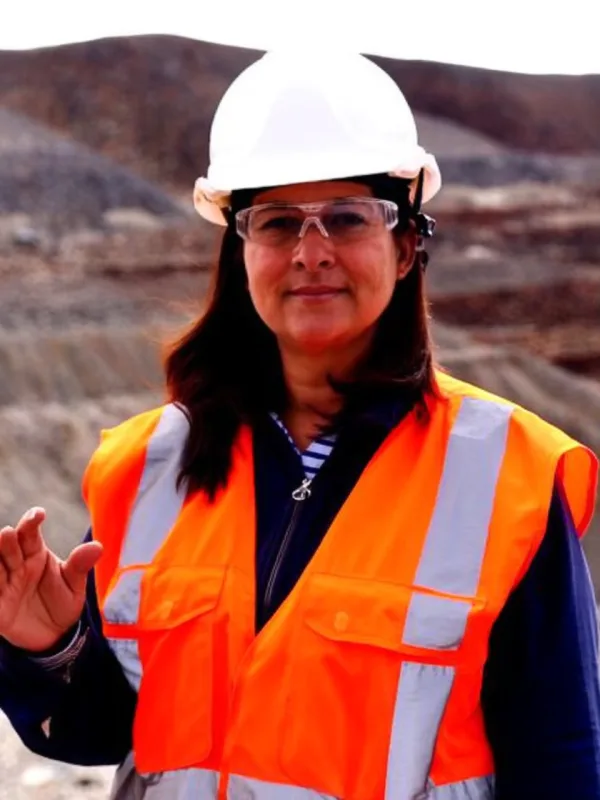
Each company can create its own avatars from a description, for example a person wearing a hard hat, safety glasses and a high-visibility vest at a mine site, and use them in its videos. Nothing is generated without approval: first you review and edit the script, see the estimate and approve. Afterwards you can regenerate with another voice or framing, compare versions and add the video to an e-learning course.

From idea to video in four steps

The generator covers the whole journey, from the request to the course where the video is used.

  1. Describe what you need

    You choose the template, the topic, the audience, the length, the format, the presenter, and the narration's voice and accent. You can start from a document or a web page, and add your own images and videos.

  2. Review and edit the script

    Clikma AI proposes the script scene by scene. You change the text and the narration, add, remove or reorder scenes, and decide in which ones the presenter appears.

  3. Review the estimate and approve

    Before generating you see the generation time and the estimate. Generation starts only when you approve, and you can cancel it at any stage.

  4. Use and improve the video

    The video is saved in your library, ready to download or to use in an e-learning course. If something is not right, you regenerate it with another voice, presenter or framing.

What you can create

Training videos from four templates, photos and graphic pieces for your communications, in the language, format and length you need.

  • Video with AI-generated scenes

    A video made of images and clips created with artificial intelligence from your script, with your logo, on-screen text and a branded opening and closing. It runs from 15 to 90 seconds.

  • Animated explainer

    Presents a topic step by step: an opening, the main ideas, a list of key points and a closing call to action, with text and graphics animated in time with the voice.

  • Model or method, step by step

    Teaches a model or a method: its steps in a list, a figure that backs it up and the acronym that helps people remember it, letter by letter.

  • Results and achievements

    Communicates results with figures that count up from zero, bars for comparison and a list of what matters most. Useful for progress updates, indicators and recognition.

  • Videos of up to five minutes

    The animated templates run from 45 seconds to 5 minutes, in landscape and up to Full HD. AI-generated scenes and photos can be landscape, portrait or square.

  • AI-generated photos

    One to four photos per request, in the style and format you choose, for communications, covers or lessons.

  • Style, tone and storytelling

    You choose the visual style (cinematic, corporate, illustration, realistic, minimalist or editorial), the tone (friendly, formal, inspiring or technical) and whether the narration is informative, talk-style or a story.

  • An example before you ask

    The generator screen shows a finished example video, with its title, narration and subtitles.

Branded graphic pieces

Besides videos and photos, the generator creates graphic pieces ready to print or post: Clikma AI writes the text of each page, you review it, and the piece comes with your company's colors and logo.

  • Six formats

    One-pager (landscape A4, 1 to 3 pages), brochure (portrait A4, 1 to 4 pages), trifold (A4 to print and fold in three) and LinkedIn post, carousel (3 to 8 slides) or banner.

  • Written for its purpose

    You choose whether it is for marketing, informing employees, an executive summary, a product sheet or a safety infographic, and the text is written for that purpose, in the tone and language you choose.

  • From your topic or your documents

    As with a video, you start from a topic, a web page or a document, and Clikma AI writes the text of each page.

  • Text you edit page by page

    Before approving, you review and correct each page's kicker, headline, body text, figures, points, boxes, call to action and footer.

  • Words in your brand color

    Headline words you write between asterisks are printed in your company's color.

  • Your images, colors and logo

    Up to six of your own images, such as screenshots, floor plans or photos of your company, go on the pages that show an image; the piece uses your company's colors and logo.

  • PDF and one image per page

    The finished piece downloads as a PDF and each page as a PNG image, ready to print, post on LinkedIn or insert in a presentation.

  • An example of each format

    Before you ask, “See example” shows every page of a real piece in each format, and you can choose it from there.

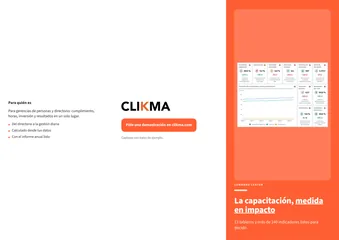
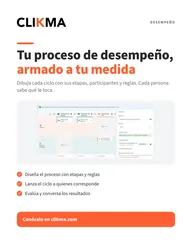
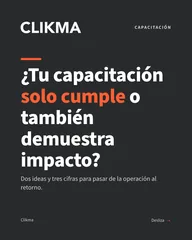
  • One-pagerOne-pager
  • BrochureBrochure
  • TrifoldTrifold
  • LinkedIn postLinkedIn post
  • LinkedIn carouselLinkedIn carousel
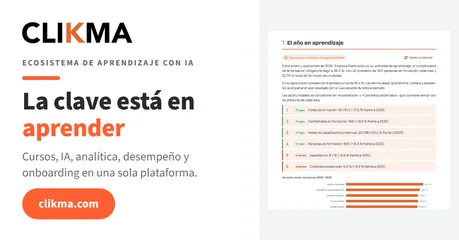
  • LinkedIn bannerLinkedIn banner
Examples from “See example”, made with the generator using Clikma's content and branding.

Virtual presenters

The animated templates can include a presenter who speaks with the chosen voice, in sync with the narration. You pick one from Clikma's catalog or use your company's own avatar.

  • Presenter catalog

    Women and men from different backgrounds (Latin American, European, North American, African, Asian, South Asian, Middle Eastern and Indigenous), with a filter by type and a large photo before you choose.

  • Lip sync with the narration

    The presenter's mouth follows the voice word by word, in Spanish, English or Portuguese.

  • Full presenter, with gestures and hands

    In full mode, the whole person is generated from the voice: shown from the waist up, moving their head, gaze, shoulders and hands, even in long scenes. Standard mode shows the person from the chest up.

  • Inset or full-screen framing

    The presenter appears in an inset at the bottom right, over the slide, or full screen in their setting, with the text on the left. You choose it for the whole video and adjust it scene by scene.

  • Setting behind the presenter

    Each presenter appears in their own background: catalog presenters in a bright office, and your own avatars in the setting you define.

  • Sharp face

    In full mode, the video sharpens the face so the presenter looks natural.

  • Presenter only where it helps

    In the script you decide in which scenes the presenter appears and in which ones only the text, the figures or your images are shown.

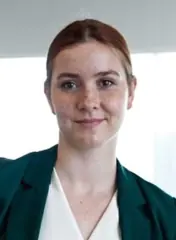
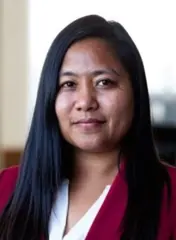
  • Some presenters from Clikma's catalog: people generated with AI, not real people.
  • Some presenters from Clikma's catalog: people generated with AI, not real people.
  • Some presenters from Clikma's catalog: people generated with AI, not real people.
  • Some presenters from Clikma's catalog: people generated with AI, not real people.
  • Some presenters from Clikma's catalog: people generated with AI, not real people.
  • Some presenters from Clikma's catalog: people generated with AI, not real people.
Some presenters from Clikma's catalog: people generated with AI, not real people.
Clikma AI

Custom avatars for your company

Each company can create its own presenters from a description, with the workwear, personal protective equipment and workplace its teams recognize, and use them in all its videos.

  • Your own avatar from a description

    You describe what the person looks like and what they are wearing, give them a name and choose whether they speak with a female or male voice. You can start from examples for mining with PPE, warehouse, healthcare or office.

  • Your company's workwear and PPE

    The avatar can wear a hard hat, safety glasses, a high-visibility vest, a uniform and hearing protection, so it looks like someone from your operation.

  • Your own setting

    You define the place shown behind the avatar, such as a work site, a warehouse or a clinic, and you can change it later without creating the avatar again.

  • Estimate, approval and a new take

    Before it is created you see the estimate and approve it. If the result is not right, you ask for another person with the same description, and the current version stays available in the meantime.

  • Exclusive to your company

    Only your company sees and uses your avatars. They appear under “From your company” when choosing the presenter for a video.

  • Ready for the full presenter

    Every new avatar is ready for full mode: from the waist up, with gestures and hands.

  • Rules that protect the result

    Descriptions that cover the mouth or nose, imitate a real or famous person, include minors or more than one person, or show someone from behind are not accepted. An avatar you no longer use is archived, and the videos that used it do not change.

A custom avatar created with the generator: a supervisor wearing a hard hat, safety glasses and a high-visibility vest at a work site.

Voices, languages and accents

You choose the voice and accent of each video. The generator narrates in Spanish, English and Portuguese, with voices in different styles and accents, including Chilean ones, and a sample of each before you choose.

  • Voice catalog

    Natural, expressive and realistic voices, female and male, each with a sample sentence to listen to before you choose.

  • You choose the voice and accent

    You choose the narration voice for each video and its accent: neutral, Chilean, Mexican, Spain, American, British, Brazilian or Italian, depending on the language of the video. When you regenerate, you can change the voice.

  • Voices with a Chilean accent

    Female and male voices with a Chilean accent, to narrate in Spanish the way your team speaks.

  • Three languages

    The video is generated in Spanish, English or Portuguese, and the generator offers the voices that speak that language. The generator screen is also available in all three languages.

  • Normal or slower narration

    At the slower speed the narration is easier to follow, and the video runs a little longer.

  • Video without narration

    If you prefer, the video has no voice and the text stays in the subtitles.

  • A voice that matches the presenter

    When the video has a presenter, the generator offers the female or male voices that match that person.

An AI-written script you edit

Clikma AI writes the script from your request and your documents, and you review it scene by scene before approving.

  • Scene-by-scene script

    The AI proposes the scenes with their narration, their on-screen text and what is shown in each one.

  • A request built from your documents

    You start from a web page, a published document or a PDF, Word, PowerPoint or text file, and Clikma AI proposes the title, the objective and the key messages.

  • Full editing before approval

    You change the narration, titles, lists, acronyms and figures with their bars; you add, remove or reorder scenes, and the estimate is recalculated when you save.

  • Figures and acronyms only from your request

    The figures in a scene and the words of an acronym come from what you wrote: if they are not in the request, the scene is replaced with another one instead of making them up.

  • Tools for long scripts

    An index to jump to each scene, expand or collapse all of them and copy the whole script.

Your images, videos and documents

The video can show your own material alongside what the AI generates: screenshots, photos of your operation or clips recorded by your team.

  • Your own images

    PNG, JPG or WebP files of up to 8 MB, each with a description of what it shows and its own scene where it is shown in full.

  • Your own videos

    MP4, MOV or WebM files of up to 60 seconds and 200 MB. In the script you choose the segment that is used.

  • Audio from your videos

    For each video you choose whether it is muted, in the background (it lowers while the narration speaks) or full (the narration speaks first, then the video plays with its sound).

  • Documents as the basis for the script

    Up to 5 sources per request, between links and PDF, Word, PowerPoint or text files of up to 10 MB. The text stays editable before the script is generated.

  • Up to six files per video

    Each request accepts up to six of your own images and videos in total.

Your company's brand

Every video comes with your company's colors and logo, and with subtitles so it can be watched without sound.

  • Your company's colors

    The video uses your company's primary, secondary, background and text colors, with contrast taken care of, and you see a preview before you ask for it.

  • Logo, opening and closing

    A branded opening and closing, your logo in the corner and a call to action at the end.

  • Watermark

    Your logo, small and semi-transparent, fixed in the corner you choose for the whole video. Without a logo, the company name is used.

  • Burned-in and downloadable subtitles

    Subtitles can be burned into the video, and when there is narration the subtitle file (SRT) can always be downloaded too.

Approval, versions and history

Nothing is generated without your approval, and every video keeps its versions and a record of everything that changed.

  • An estimate before generating

    When you prepare the request and before you approve the script, you see the generation time and the estimate.

  • Explicit approval

    Generation starts only with “Approve and generate”. You can cancel it at any stage, and anything that fails or is canceled is not charged.

  • Monthly limit per company

    Each company has a monthly limit and sees the month's charges in the generator itself.

  • Regenerate with another voice, presenter or framing

    You create a new version with the same script, changing the voice, the speed, the presenter, the mode or the framing, and compare the versions.

  • Use as a starting point

    You duplicate a request and its script to make a variant without starting from scratch.

  • Change history

    It records who requested, edited, approved, canceled or regenerated each video, and what changed in each edit.

  • On-screen progress

    You see each stage (the narration, the presenter, the images and the assembly) and can leave the screen while it is generated.

Built into your courses

Generated videos are kept in your company's library and used in Clikma Player e-learning courses without downloading or uploading them again.

  • Content library

    All your company's videos, photos and graphic pieces in one place, with search by title or author, their status and how many e-learning courses use each one.

  • Use in an e-learning course

    From the generator, the video becomes one more step of the e-learning course you choose.

  • AI-generated content in the course editor

    From the e-learning editor you add a video from the generator as one more element, or build an e-learning course of AI-generated content, with search.

  • Where it is used, and updates

    Each video shows which e-learning courses include it. If you regenerate it, you update those courses, and people who already watched it keep it as completed.

  • Downloads

    The video as MP4, its thumbnail and its subtitles; photos as PNG; graphic pieces as a PDF and one PNG image per page.

Frequently asked questions

Can Clikma create training videos with AI?

Yes. With the content generator, Clikma AI writes the script from a topic or from your documents and produces the video with a virtual presenter, voice narration, subtitles and your company's branding. You review and approve the script before anything is generated.

Can I create graphic pieces as well as videos?

Yes. The generator creates a one-pager, a brochure, a trifold, or a LinkedIn post, carousel or banner with your company's colors and logo. Clikma AI writes the text of each page for the piece's purpose, you review it before approving, and the finished piece downloads as a PDF and as one PNG image per page.

Can I have my own avatar wearing my company's workwear?

Yes. You describe the person, their workwear, their personal protective equipment (hard hat, safety glasses, high-visibility vest, uniform or hearing protection) and the background. You approve the estimate and the avatar becomes available only to your company, ready to use in your videos.

Can I choose the voice and accent of the video?

Yes. For each video you choose the narration voice, female or male, after listening to a sample sentence, and its accent: neutral, Chilean, Mexican, Spain, American, British, Brazilian or Italian, depending on the language of the video. You also choose whether the narration runs at normal or slower speed, and when you regenerate you can change the voice.

Which languages and accents does it speak?

Spanish, English and Portuguese. Each voice shows its accent: neutral, Chilean, Mexican, Spain, American, British, Brazilian or Italian, and there are female and male voices with a Chilean accent.

Can I edit the script before the video is generated?

Yes. The AI proposes the script scene by scene and you change the narration and the text, add, remove or reorder scenes and choose where the presenter appears. Generation starts only when you approve.

Are the presenters real people?

No. The catalog presenters and your own avatars are people generated with AI, and the generator does not accept descriptions that imitate a real or famous person.

Can I use my own images, videos and documents?

Yes. You can add up to six of your own images and videos per request, choose the segment and the audio of each video, and start from web pages or PDF, Word, PowerPoint or text files to write the script.

How is generation spending controlled?

Before generating you see an estimate, and nothing is generated without your approval. Anything that fails or is canceled is not charged, and each company has a monthly limit with the month's charges in view.

Can the videos be used in Clikma courses?

Yes. A finished video is added as a step of a Clikma Player e-learning course, from the generator or from the course editor. If you regenerate it later, you update the courses where it is used, and people who already watched it keep it as completed.

What if I am not happy with the video?

You regenerate it with the same script and another voice, speed, presenter or framing, or use it as the starting point for a variant. Every version is kept and the history records the changes.

Who can use the content generator?

The people who manage training at companies that have the generator enabled. It lives in Clikma's Smart Assistant, together with the company's content library.

In detail

What it does today, feature by feature

Available out of the box in the platform, with no additional development.

Content generator

  • AI-generated training videos with a virtual presenter

    From a topic, Clikma AI writes the script and produces the video with a presenter from the catalog or the company's own avatar, with voice, subtitles and the company's branding. It also creates graphic pieces, such as a one-pager, a brochure or a LinkedIn carousel.

All features: Artificial intelligence

Clikma AI

Get to know Clikma with your own use cases

In a demo we walk through the features you care about, with your processes and your numbers.

Book a Demo
Logo